Obsidian Setup for Beginners: The Settings and Plugins I Use
A coach in one of my programs asked me a question this month. He'd moved his notes to Obsidian because he believes it's where note-taking is heading. After years in Evernote, though, it felt rough to type in. Something as simple as changing the color of a word needed a plugin. He wanted to bring some of his clients across too, and he knew they'd give up on it. So he asked whether anyone had already done the work, a list of settings to change and plugins to install that makes Obsidian behave like the notes app you'd expect. Two other coaches replied within a day asking for the same thing.
Here's my answer, the Obsidian setup I use every day, packaged as a free starter vault you can download and start typing in. Below the download, I've listed every setting and plugin and what each one does, so you can set up your own vault by hand if you'd rather.
If you already enjoy typing in Obsidian, you don't need any of this. It's for anyone who opened it and found it harder than it should be. And if you're still deciding whether Obsidian is the right app for you, read why I chose it first.
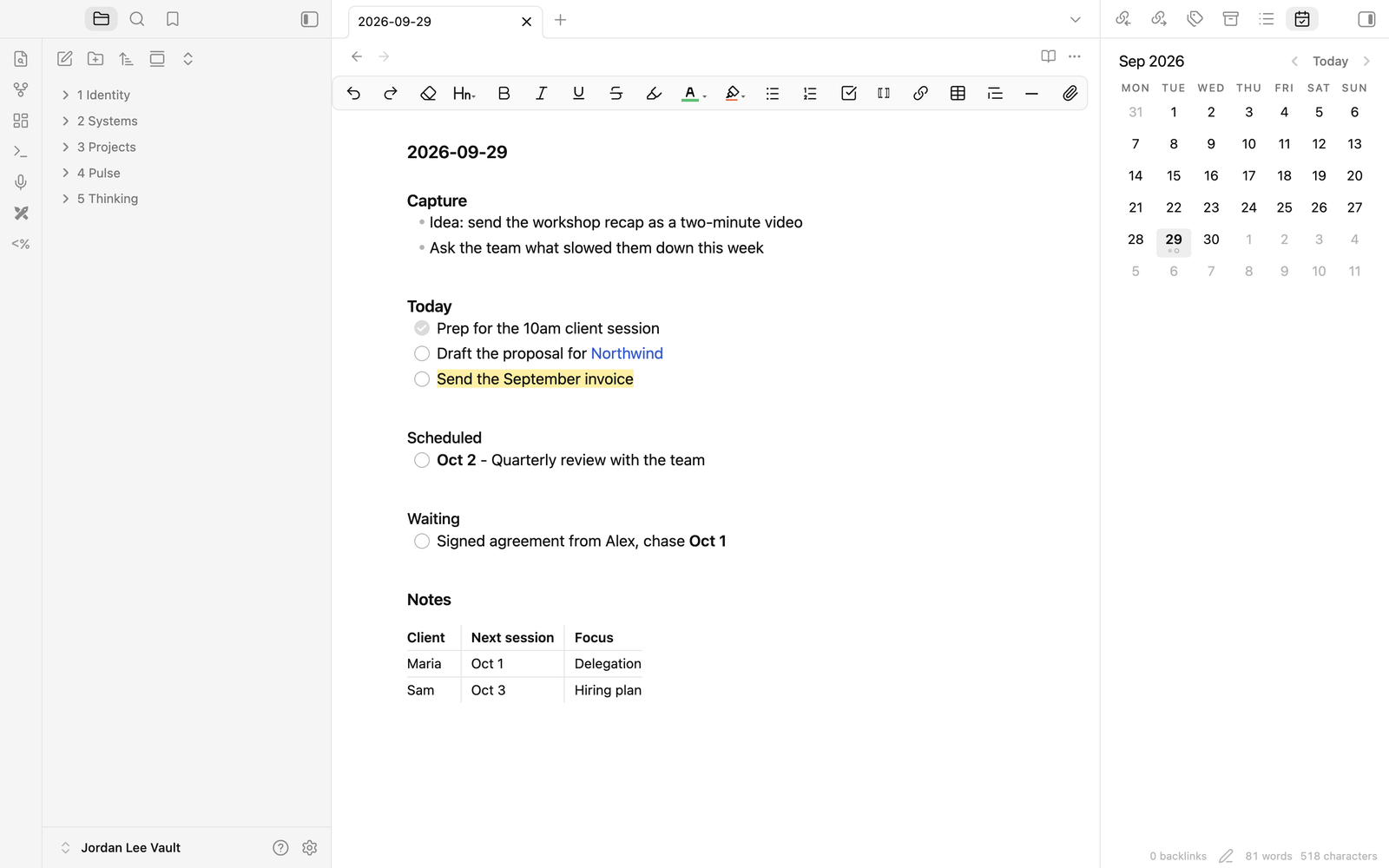
Set up Obsidian in five minutes
- Install Obsidian from obsidian.md. If you already have it, update it to the latest version first.
- Download the starter vault and unzip it. You'll get a folder called Your Name Vault.
- Move that folder into your home folder (the one with your name on it) and rename it with your own name, for example Jordan Lee Vault.
- Open Obsidian, choose Open folder as vault and pick your folder. If Obsidian already has a vault open, click the vault's name in the bottom-left corner, choose Manage vaults, then Open folder as vault.
- Obsidian asks whether you trust the author of this vault. Click Trust author and enable plugins.
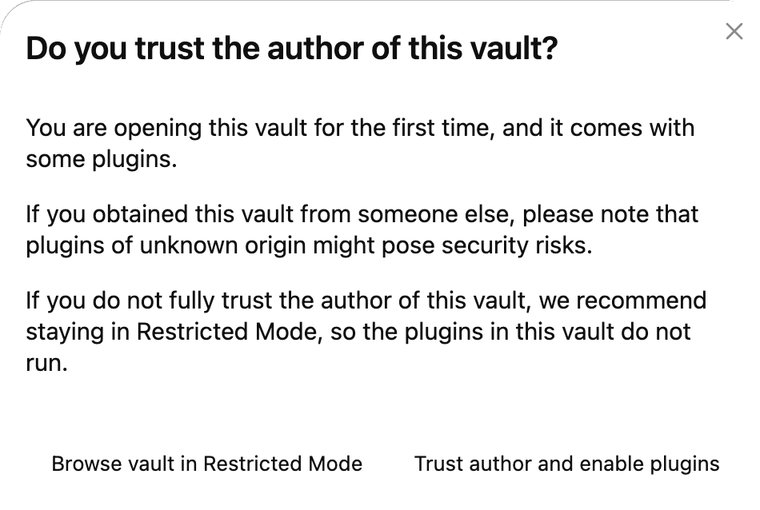
Obsidian asks this the first time you open a vault that comes with plugins. Every plugin in this one is listed further down. They're all free and open source, and each one is exactly as its author published it. If you click Restricted Mode by mistake, the plugins won't run. Go to Settings, then Community plugins, and turn them on.
When the vault opens, you'll see a note called Start Here with four things to try. They take about a minute.
Why Obsidian has no text color button
If you're coming from Evernote, Word or Apple Notes, this is probably the first thing you'll miss.
Your notes in Obsidian are plain text files. Open one in any app on any computer and you'll see your words, with a few symbols for formatting, such as two asterisks either side of a bold word. Plain text has no way to store a color, so Obsidian doesn't offer one.
That's also why any AI can read your notes cleanly, and why they'll open in whatever app you're using years from now. Evernote could color your text because it kept your notes in its own format, on its own servers.
The starter vault gives you color anyway. Select a few words and pick a color from the toolbar, and the toolbar wraps them in a small tag, like the line below.
<font color="#245BDB">Northwind</font>
Obsidian shows the word in color, and any other app or AI still reads the word itself.
The settings I recommend
These are the changes I make to Obsidian's defaults, and the starter vault has all of them. If you're setting up your own vault, open Settings with the gear icon in the bottom-left corner.
- Turn on Slash commands (under Core plugins). Type
/on a new line and pick a heading, list, checkbox or table from a menu, with no symbols to learn. - Switch the theme to Minimal (under Appearance, then Themes, then Manage). It gives you a calmer page to type on.
- Turn on Always update internal links (under Files and links). When you rename a note, every link pointing to it updates too.
- Send new notes to 5 Thinking. Under Files and links, set Default location for new notes to In the folder specified below, and pick 5 Thinking. Anything you haven't filed yet then sits in one place until you move it.
- Save attachments next to the note. Under Files and links, set Default location for new attachments to In subfolder under current folder, and name the subfolder attachments. Images and PDFs then stay beside the note they belong to.
- Turn on Detect all file extensions (under Files and links). PDFs, Word documents and spreadsheets show up in your sidebar with your notes.
Obsidian already gets three things right, so leave them on. Live Preview hides the formatting symbols while you type, and Readable line length and Spellcheck do what they say. All three are under Editor.
One setting is different in my own vault. I've switched off the question Obsidian asks before deleting a file. Leave Confirm file deletion on until you're comfortable. It's under Files and links, and the starter vault keeps it on.
The plugins I recommend
Plugins are add-ons written by people in Obsidian's community. You install them from Settings, then Community plugins, then Browse. The starter vault comes with all nine installed and set up.
- Editing Toolbar. Word-style buttons along the top for headings, bold, lists, checkboxes, links, tables, text color and highlight. It's the one plugin here that isn't in my own vault. I added it because it's the quickest way to feel at home if you're coming from Evernote or Word. It also has AI writing features. They're switched off in the starter vault, and I'd leave them off unless you know where your notes are being sent.
- Excalidraw. Hand-drawn diagrams and whiteboards that live in your vault as files. I use it for the whiteboards I teach with. Drawings save in 5 Thinking, in the excalidraw folder.
- Periodic Notes and Calendar. A calendar in the right sidebar. Click a date to open that day's note, which saves in 5 Thinking, in the journal folder. For a weekly note, press Cmd+P (Ctrl+P on Windows), type weekly and choose Periodic Notes: Open weekly note.
- Templater. Fills in today's date when you start a note from a template, like the meeting template in 5 Thinking, in the templates folder. Press Cmd+P, type template and choose Templater: Create new note from template.
- Dataview. Builds the open tasks list in each weekly note. It gathers every unchecked task from your daily notes, so you can see everything still open in one place.
- Advanced Tables. Makes tables easy to type. Press Tab to move to the next cell and the table tidies itself.
- Hover Editor. Hold Cmd (Ctrl on Windows) and point at a link to read or edit that note in a pop-up, without leaving the one you're in.
- Style Settings. Lets you change Minimal's fonts and colors later, if you want to.
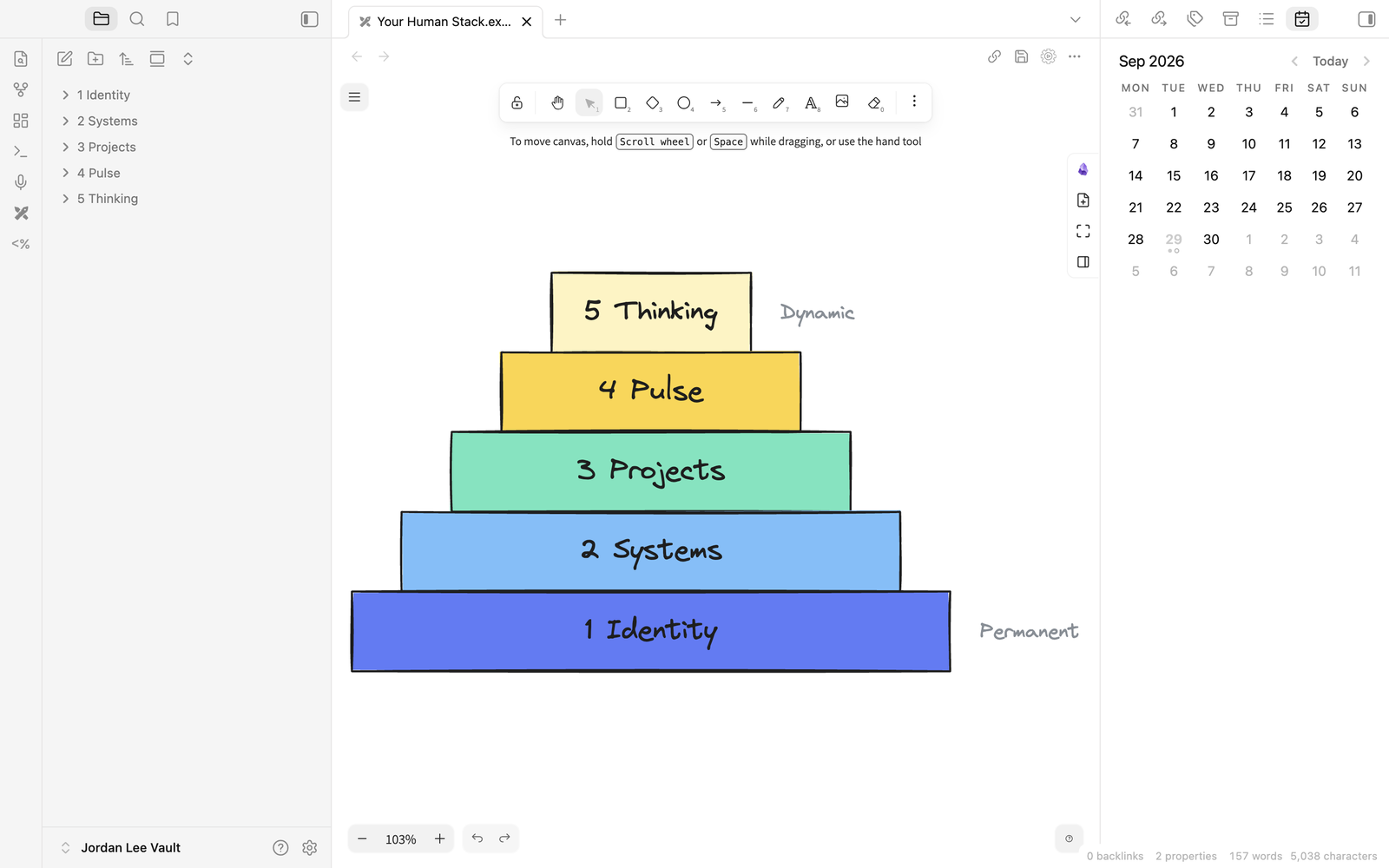
Where your notes go
The starter vault comes with five numbered folders, so everything you write has one place to live. I call this structure the Human Stack.
- 1 Identity holds who you are.
- 2 Systems holds how you work.
- 3 Projects holds one folder per project.
- 4 Pulse holds what matters this week.
- 5 Thinking holds notes, ideas and meeting notes. Your daily notes, drawings and templates live here too.
Coming from Evernote, Notion or Apple Notes
Obsidian makes its own plugin for bringing old notes across, called Importer. Find it under Community plugins, then Browse, by searching for Importer, and follow its steps for the app you're leaving. Import everything into 5 Thinking and file things properly as you use them.
What I left out
My own vault has one more plugin, called Git. It saves every version of every file to a private space on GitHub, a website first built for programmers to store code, so I can go back to any earlier version. It needs a GitHub account and some setup, so it isn't in the starter vault. Add it once Obsidian feels normal.
Now stop tweaking
It's easy to lose a whole weekend adding plugins. This setup is enough to do real work, so start typing. When you want to go deeper, Nick Milo's YouTube channel is where I'd send you.
Your vault is ready for your thinking. When you want an AI to work from it too, Set Up Your Human Stack walks you through the three short documents it reads first and how to connect it. Your five folders already exist, so you can skip that guide's first step.
Last checked September 29, 2026, with Obsidian 1.13 on a Mac.